If you’re smitten by windows mobile phone like HTC, Asus or likes (just like me), and have switched your loyalties from Symbian (SE, Nokia etc.) to MS Windows mobile recently; you should find this article useful.
One of the good things about Windows Mobile is that it uses MS ActiveSync to synchronize your important data from mobile to your desktop. However, the bad thing about it is that MS ActiveSync requires MS Outlook to be available on your desktop and MS Outlook is *expensive* (Typical of M$, isn’t it ;)).
Yeah, there is usually 60 day trail version offered via download with Windows Mobile,; but if you’re like me – you’d probably prefer continuing with your preferred email client and still be able to import your existing contacts to your desired windows mobile phone.
Here are steps that would enable you to import contacts to windows mobile without requiring MS Outlook.
- Install PIM Backup – First and foremost, install PIM Backup from dotfred.net, this is an excellent freeware tool and would allow you to do backups/restore on your windows mobile easily with several features.
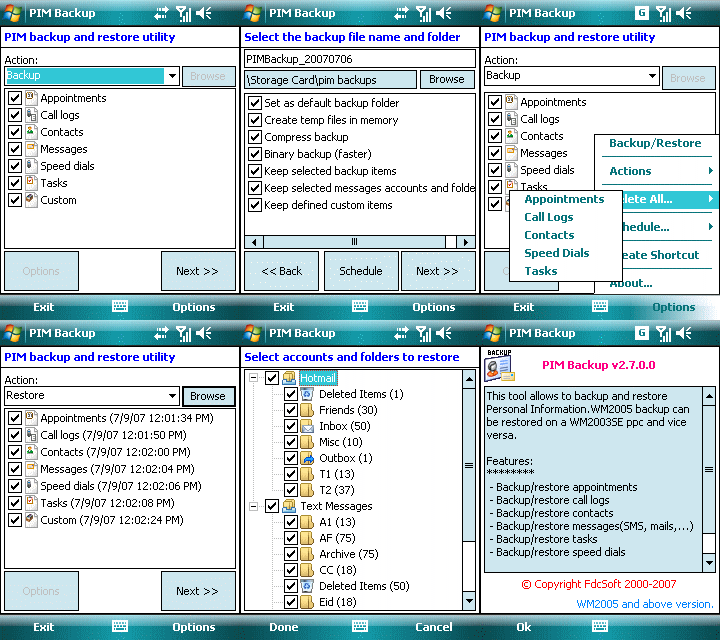
You can just download the zip file from the link given above and unzip the .exe file and put it in appropriate directory on your windows mobile phone, and it’s ready to work. The installation is as simple as that. You have to have this application installed on your windows mobile phone; and you’d sure thank me for recommending! 😉
- Get your contacts in CSV format – Save your contacts in plain text file in CSV (Comma Separate Values) format (Regular Windows Address book allows you to do this). Let’s call this file as contacts.csv.
- Rename the CSV file – Rename the file from contacts.csv to contacts to contacts.csc. This is a very important step to make sure that contacts get imported to your Windows Mobile
- Zip the file – Zip the file contacts.csc and create contacts.zip from it.
- Rename the ZIP file – Rename the zip file contacts.zip to contacts.pib. Again, renaming is very critical for importing the contacts.
- Copy file to your windows mobile – Copy this contacts.pib file to your windows mobile using either bluetooth or USB via file explorer of MS ActiveSync.
- Restore using PIM Backup – Run PIM Backup on your windows mobile, select “Restore” option from the drop-down, browse to the location of contacts.pib on your windows mobile. The PIM Backup will ask you to choose correct field delimiter (comma, semi-colon etc. It should be the comma if you have created default CSV file) and once you do that, it will map all fields correctly (Name, Last name, Home Phone and so on) from the pib file to contacts; press “Next” button of the PIM Backup and follow instructions there and it will have all your contacts imported successfully on your windows mobile! Allow yourself a little dance of victory & joy! 🙂

 Reclusive Coder's Blog
Hi there,
When I found your posting I was delighted as activesync had just uploaded all my contacts to my Vista machine – but deleted every one of them from my TYTN11. Arrgg!
Am I doing something wrong? I follow all your steps but PIM backup just doesn’t see the zipped file? It’s visible on the TYTN by the connected Vista machine – but not visible to the PIM
Any help gratefully received. Thanks
LikeLike
Hi,
My HTC P3600’s USB port seems to be broken (cant’t connect to a PC using a USB cable) so I did a stupid thing which was to do a hard reset before backing up my data. I now have the PIM information on my PC and can’t get it back to the HTC, so when I found this Post i thought my life was saved.
Well, I have followed your instructions correctly (except copying the file contacts.pib with the ActiveSync; instead I copied the file directly to the storage card) and when I try to open the contacts.pib file with the PIM Backup program I allways get the message “the format of the file “contacts.pib” is invalid.
Any help?
LikeLike
Hi,
same problem here, until i use the ActiveSync – problem solved. Except the direct copy to storage card, use ActiveSync.
LikeLike
I found out that the extension is case sensitive. .CSC is not accepted. Renaming to .csc did it for me.
Thanks, it was very helpfull
LikeLike
This is really excellent – the prospect of bluetoothing all 500+ of my contacts singly was seeming like the only option, then I found this advice.
Bless you a thousand times.
Rob
LikeLike
Thanks Rob for your comments!
@Tim – did you keep PIM on “Restore” mode, AFAIK, TyTN II uses Windows Mobile 6.1, so it shouldn’t have any problems at all. Just make sure you have done all steps correctly, including renaming “zip” file as “pib”.
@Al – Did you make sure that CSV is valid and renamed as csc? I had this problem when there was an unterminated string in my CSV file, once I removed it import was successful by PIM. DO crosscheck all file as you have created and renamed.
LikeLike
Manish, The PIM manager I downloaded is new and has Import and Export features. I was able to take the CSV file “as is” and just import. Took me a couple of tries, it was hard to map the field names. I found that if you make the field names in the CSV file match the field names in the contact application PIM maps the fields for you. For example I had my contact list with a first name field and a last name field. Outlook prefers just a name field. I edited mu CSV file to have just a name file. When I did the import PIM mapped the field for me automatically. My phone decided on its own to do a factory reset while I was flying to Mexico from US. I spend days trying to recover. Found your article and was ready to go in less than an hour, and most of that was formatting the CSV file from my master list, an Excel file.
Very good, Sir!
LikeLike
Thanks a lot for detailed step-by-step howto! You saved lot of hairs on my head %)
LikeLike
Hi, I am trying to follow your steps but when I wanted to restore using PIM, i’m not able to point to the contacts.pib (The contacts.pib is located in my storage card).
I renamed the contact.csv via explorer but it comes out as contact.csc.csv. Is this wrong?
LikeLike
@kit — You need to make sure that file is indeed “contact.csc” only. You may have to change windows folder/directory preferences to display file extensions and then change the file name. The file must be called .csc file.
LikeLike
ok, I screwed up. All the steps worked great, except I thought I had everything mapped correctly and I did not. How do I start over?
LikeLike
I restored from backup I took. Then I tried to restore again using the contacts.pib it states it is in use. I looked at my contacts and they are all there and not tied to my work outlook or windows live. It is all working (not exactly sure how it resolved).
Many Many thanks for this posting and the great referral to Dotfreds.net
Thanks Again!!!!!!!!!!
LikeLike
This was fantastic! I am “trying” to learn Win Mob (I’ve been a Palm user for 15 years! My job is now including support on WinMob….) I have a new phone and 250 contacts. i don’t want to use Outlook for personal stuff and this was perfect! THANK YOU!
LikeLike
Hello. I tried doing this and I keep getting a format of file is invalid. I followed your instructions to the T. Any help would be greatly appreciated. Thanks.
LikeLike
What does unterminated string mean? I may have that.
LikeLike
I copied pimbackup.zip to windows mobile 6.
Unzipped it on the mobile, it unzipped, created the ppcpimbackup.exe but nothing comes up under tasks.
This is a samsung sgh i617.
Any suggestions? I’m new on the mobile side, very familiar with windows xp.
Thanks for any help.
LikeLike
Finally found how to run ppcpimbackup.
I used applications/file explorer to find pimbackup.
I also got message “application data\volatile\contacts.csc” already in use, so I used file explorer to get to contacts.csc in folder volatile, and deleted it, then ppcpimbackup ran ok.
LikeLike
To Export from Yahoo Contacts, I noticed that using “Microsoft Outlook” worked. If I used “Yahoo!Cvs” to export, my final mobile contact file would be all messed up. So using “Microsoft Outlook” to export yahoo contacts, then follow all directions. At first the contacts would not show NAME, but powering off and back on cleared this up. Neat!!! I now have 253 contacts on my windows mobile 6 samsung blackjack 2 with little effort.
Thank you for the software.
LikeLike
Sorry, I made one mistake above. The names still remained “unknown”, so I did have to hit “edit” and “done” for each contact to show names.
LikeLike
Bob, I am glad you got it working! 🙂
But names shouldn’t get mismatched if you have got them right in your CSV file.
LikeLike
The only name that remains missing or “unknown” is the “file-as” or full name. By using excel on the laptop, on the cvs file to add a field “name” as the first field, which contains first and last name “B2&” “&C2, then continue the process worked. Contacts now shows name rather than unknown. I think that earlier I was putting a coma (,) in the name, and it messed up the restore.
NOW EVERTHING WORKS GREAT!!!!! Thanks again.
LikeLike
Thank you! This solution worked very nicely. No problems at all when procedure is followed as provided. I’ve spent the better part of a day trying to recover my contacts on Win Mob Pro 6.1, which I had deleted in prep to reload my new smartphone (HTC Fuze) with cleaned up contact info.
I got creative with merging contacts from my old phone SIM with cleaned up contacts from a variety of sources. The part where I assumed that MS active synch would repopulate contacts on my smartphone is where I went off the road. I’m stunned that this turned out to be such a pain. No thanks to MS for trying to corner people into using Outlook to manage their smartphone contacts.
LikeLike
Thank you very much, I really did not want to by new version of outlook.
LikeLike
Dear Manish, this is an excellent working instruction. Congratulations!
LikeLike
I have a sgh-i617 I highlighted the second windows pc. I had windows pc and windows pc 2 and I deleted #2. I then went to my handbook contact menu from the today screen and all of my contacts had been deleted! how in the world do I get them back
please help!
LikeLike
I am still seeing unknown… my csv file is like this
“Title”,”First name”,”Middle name”,”
“”,””,””,”A”,””,””,””,””,””,””,””,””,””,””,”*#
any issue with this?
LikeLike
hi, is there anyway for the opposite process. ie copying contacts from my windows mobile to pc which dont have outlook..?
LikeLike
@ Aravind – you can do this with PIM Backup. Take backup in text mode and then transfer it on your computer and use it the way you want.
LikeLike
Hello,
my HTC touch just dead, i think the board fried. Last week i managed to COPY all data from memory and storage card.
My question is, where is my address book on the files? I have open all copied folder but could not find anything which could salvage all my address book.
Anyone willing to help?
Thanks
LikeLike
Manish (or anyone else)–
I have contacts on an old smartphone running windows 5.0 mobile…
I am interested in getting them imported onto my desktop (without outlook) any ideas on how to do this?
Thanks
BD
LikeLike
Hi Manish, Just wondering if it is possible to export the contacts in windows csv format from Windows Mobile. Somehow my mobile and outlook do not sync up. So just to have all the contacts backup I wanted to have this option.
Thanks
LikeLike
Hi, thanks for this excellent tip.
works very well. Only thing is that the CSV filw has to be edited to put a field name that is taken as file as. otherwise it appears as unknown in the contacts.
thanks again
LikeLike
Yes. Do I really have to change each contacts “file as” value to be able to see the name in the list. I have 500!
LikeLike
Thank you SO MUCH!!!
LikeLike
Re: the File As . . . I’m using Win Mobile 6 and what I had to do was use excel to manipulate the csv . . . In my csv I had first name, last name, mobile, home, work, fileas
I used a formula to concatenate the lastname, a comma and space, and the first name. Then I copied that column and pasted the values only into it. I took that csv and followed the instructions on this website.
When I got to the point of mapping the data, I mapped fileas to the “Name” field.
Also note, I had to delete the contacts in the volatile folder of the phone before I was able to run the restore.
Hope that helps!
Jerry
LikeLike
Thanks a lot.. Very useful…. if u dont miss any steps, its cake walk…
LikeLike
absolutely brilliant piece of work!
i was pulling hair out as i dont have the cd to enable the import/export engine on outlook.
good job!
LikeLike
Well on second look, all the contacts i’ve imported come up at UNKNOWN, and there is only the name information in the contact card itself. no phone numbers 😦
LikeLike
how to rename .csv to .csc and .zip to .pib ,
please make me clear , it will be very helpful
LikeLike
Hi
i got how to change it but when i restored only i am getting name and not mobile number do no why . please help me
LikeLike
Hi..
Thanks for the step by step updation. I did everything according your suggestions, but, when i restored the pib file, all the contacts were saved in “contacts” of my windows mobile and when i poen contacts everything is blank. i cannot see names in the contact list.
any help please…
LikeLike
Hi, this was great. A couple of things. I didn’t need the zipped.pib file. In fact I couldn’t import from it. I just used the csc file. And I had to do the edit>done bit too for every contact. But it has saved me a lot of grief nonetheless.
Thanks.
Kieran.
LikeLike
This worked flawless, just had to change the properties in windows to show file name extensions, renamed them properly, and bam! got my contacts!!!! thank you!!!!!!!!
LikeLike
Aaargh I really can’t make it work properly! My Phonebooks are still Unknown.
LikeLike
windows mobile 2006
-exported csv file from outlook (renamed to CSC)
-copied to treo using active sync copy/paste
-opened file and restored
-contacts imported fine BUT they show as UNKNOWN
LikeLike
Same for me -.-
LikeLike
My old phone running on windows mobile6.0 crashed but somehow i was able to retrieve the pim.vol file from it. Now i’ve got a new phone which runs on 6.1. I tried copying this file into the root directory of the phone but it does not read the old contacts, what do i do? any way to retrieve contacts?
LikeLike
Thanks for the help it worked well with transfer from windows mail
LikeLike
ps Windows mobile 2003 and Vistal ultimate 64bit os
again thanks
LikeLike
Aahhhh!!!!!
I was so hoping this would work for calendar as well!!!
🙂
LikeLike
@ Mexy –
Maybe you can figure out and write a similar article on how to do it for the Calendar? 🙂
LikeLike
I followed the steps above.. Exported from WAB to csv file. Then renamed to .csc and zipped and renamed that to .pib. When I try and open with PIM Backup it says the format is not valid. Is there a step I am missing?
LikeLike
Good tip. Actually this is a trick reverse process of the export process of PIM application.
I solved my situation: my nokia 6600 export contacts to a .vcf file. An online convert helps me to convert it to .csv file.Follows your steps. Finally, I imported my contacts OK to my new HTC Pro, WM6.5.
One more word, PIM Backup is really an excellent application according to me. It does a very good job.
LikeLike
Thank you so much! Extremely useful, especially with my ActiveSync not willing to sync 😉
LikeLike
Thank you so much.
You save my 300 contacts address.
Very useful and easy to follow your instruction.
Wish you healthy and happy.
LikeLike
I had a lot of contacts saved to the Outlook contacts (not to the SIM contact space) on my mobile HTC Touch
The Outlook client on my mobile had a connection setting/partnership to my previous employer exchange server and kept asking as it failed to connect, so I kind of deleted the connection on the device when I ActiveSynced to a different PC!
Now I see that all my Outlook contacts are not visible when I see the contacts on the phone! I am not sure why the Outlook Contacts are not shown even when the pim.vol has those?
I copied the pim.vol to my PC and checked that there are contacts in there but I am not able to view them? Please help
LikeLike
When I go to browse for the contacts.pib file I am not able to find it. I should state that when you said to rename the files I did just that. I right clicked the file choose rename and renamed them as suggested.
Any help would be greatly appreciated.
Thanks
LikeLike
Thanks for a great application. I don’t use Outlook on my cell phones or PC. Everytime I purchase a new phone, moving contact records is a problem. I like the more comprehensive information on the cell phone Outlook contacts, but am forced to reply on the SIM card contacts for transfers which loses important information. I spent some time with Google trying to find a better way and that is how I located your super great program. I was so impressed I sent you a PayPal donation. Thanks for your efforts.
LikeLike
excellent and thanks
LikeLike
hi!
i have the following problem: i have a htc diamond 2. on my home pc i am using the yahoo adress book to organize my numbers, addresses etc. now i want to get all the contacts from yahoo to my diamond 2, which runs win mobile. so finally i found this page and tried it.
my problem: i could import it. but it didn’t work correct. i can’t find the contacts, that i have created with yahoo. instead of this, now i find many contacts with “unknown” on it.
can anyone help me, getting my contacts with all its information from yahoo to win mobile on htc diamond 2?
LikeLike
I am using an HTC Windows Mobile and Imported about 140 contacts from my outlook following the above steps.
What worked for me:-> I renamed the files (Step 5) using command prompt, Right Click and renaming the file did not work for me.
Also, I had to make editions in the way the fields were mapping from the csv file to the Windows contact fields.
Worked after a couple of tries.. Thanks for hosting this solution!
LikeLike
Hi Manish,
Thank you very much. This worked well. Without your guidance, I am totally lost trying to transfer my hundreds of contacts from my beloved Palm to my interim WinMo Asus.
LikeLike
Hi Manish,
Thank you for offering this solution. I have a question that was raised bu another poster: In the past I have used ActiveSync on a Windows machine with XP installed, but that machine is now trashed and all I have to hand is a laptop with Vista, or a virtual Linux (Knoppix). PimBackup has created bakup files with all the address/contacts etc data from my HTC P3300, and I would like to edit the information on that backup on the laptop, maybe with openoffice or similar. This is required because there are many duplicate entries which need to be deleted. I tried following your instructions in reverse, that is to say, I changed the extension of the backup from PIMBackup_20090926.pib to PIMBackup_20090926.zip, then decompressed to a new folder. Now I am stuck because the file extensions have nothing to do with the ones discussed here: appts_20090926.pba – clogs_20090926.pbl – contacts_20090926.pbc – custom_20090926.pbx – msgs_20090926.pbm – speeddials_20090926.pbd – tasks_20090926.pbt. Should I try changing exts to*.csv?
LikeLike
CSC files or pib files dont exist on xp computers
LikeLike
This was Awesome. I skipped all the extention changining and what not for the most part. As long as you make it a .pib you should be fine. Thanks for the awesome app.
LikeLike
it was soooo helpful .. greaat… all 3200 contacts from my company in my HTC… thx again
LikeLike
Thank you so much, you saved my life. I’ve been searching for hours until I came up with the pib search term that led me to this site.
LikeLike
You’ve saved me. 🙂 finally, i could import address book from csv data.
LikeLike
i found a better way.
1. Upload your .csv file to gmail.com contacts.
2. Run ActiveSync in your mobile device.
3. Now go to m.google.com/sync for more info. Direct link: http://www.google.com/support/mobile/bin/answer.py?answer=138636&topic=14299
LikeLike
Hi Manish!
Thank you the great tip!
You (and the FdcSoft) are my saviour… 🙂
Thanks again!
LikeLike
THank you very much friend. I got all my contacts from my windows mobile. Trying to import into iphone.
LikeLike
did it work with u man?
now i have my contacts on pib format , how can i have it on my iphone ?
LikeLike
Hi Manish:
It was a great relief after completing the exercise of transfering contacts to my newly aquired ASUS P835 Windows Mobile Phone – it took quite an effort to find this message of yours – and of-course did the little dance at the end as proposed by you!!
LikeLike
Hi, Manish!
I tried to restore the pib file, but message below prompt: –
CSV File Error
(ERROR_CSV_BAD_HEADER): Bad formatted header found.
Please assist. Thanking you in advance!
LikeLike
You made my day dude!! Thanks a ton! And Happy New Year 🙂
LikeLike
Thanks a ton! It worked for my ASUS P527 phone.
LikeLike
as usual from a guy from India: the article has NOTHING to do with what the intro says.
LikeLike
Thank you thank you thank you!!! This saved me so much time and effort!
Very nice software tooo!
LikeLike
Thank you for taking the time to post this. For a minute there I thought I was going to go insane! Worked a treat for me!
LikeLike
Hi,
I have a Nokia and HTC phones, I am trying to transfer the contacts from My Nokia to HTC.
Steps I did , which did not work……..:(
1. Exported the contact as CSV using Nokia PC Suit Software.
2. Changed the name of the file to .csc , ziped it , change the zip file to .pib copied the file to my HTC phone
3. Restored the contacts using PIM Backup .
4 I get a message that 0 contacts were inserted , tried all the option while restoring , still not working…… Help is needed , I have 1841 contacts
LikeLike
Hi Manish,
Just wanted to add my voice to the chorus – this is such a useful article! I too needed to merge the ‘first name and ‘surname’ fields to get it displaying in the phone’s list – maybe worth adding a note in your text?
Anyway, thank you.
Dave
LikeLike
Hi, Nice post. Thanks for the information sir. free cell phone wallpapers
LikeLike
HI,
When I choose the file contacts.pib to restore, it prompt me that the format of the file “\MyStorage\Program\contacts.pib” is not valid.
what should i do?
LikeLike
Thanks a lot, you’ve saved my job!!!
LikeLike
Excellent !
Great idea. Restored my contacts.
Thanks for this.
LikeLike
Great information. Keep up the great work. I love yahoo.
LikeLike
Hi
I am trying to rename the contacts.csv file to .csc file. bu it is coming as contacts.csc.csv. Pls guide me how can i change the file to .csc extension.
Thanking in advance.
LikeLike
could not change the extension to .cs. then also how to zip it & change again the ext to .pib
tried in all ways but pls guide how to do.
THANKS IN ADVANCE
LikeLike
Hi,
does not work – PIM Backup says
the format of the file contacts.pib is invalid
using PIM Backup v2.8.0.0 (wm6.5)
LikeLike
I recommend iMobileTool Contacts Backup. It works great for my HTC mobile.
Free download: http://imobiletool.com/contacts-backup-for-windows-mobile.html
LikeLike
Muchas gracias, funcionó muy bien en mi HTC Touch Viva, saludos desde Colombia 😀
LikeLike
How can I (if there is a way) to use this app to back up my contacts, somehow rename/convert, and import into outlook? The problem I have is that outlook is not syncing all of my contacts on my phone. I have 350+ contacts and only 190 are being synced into outlook. I want to somehow create a .csv file from my pim.vol in order to import it into outlook…please HELP! LOL…
LikeLike
The article was very useful, everything worked, PIM restore said it had inserted all my contacts in the database, but… when I look into Contacts they are not there!! This is driving me crazy, please help
LikeLike
Hi Manish,
Can you please tell me how to rename the files from csv to csc and pib. I just don’t know. When I right click and click rename it is not working. What am I doing wrong?
LikeLike
Man, u’ve done n awesome job!!!
thanks a lot!! u’re a life saver!!!
keep the good work up!!!
LikeLike
Thanks a lot Bro. I just add my contacts from my outlook on laptop to my ‘accidentally reset’ WM phone.
LikeLike
Excellent. It worked.
Thanks a lot.
LikeLike
Thanks For Sharing…:)
LikeLike
Dear Manish,
I have a chinese mobile phone that operates with the following
Processor MTK
Operating System RTOS
The mobile phone doesn’t have Microsoft Outlook.
My Laptop has microsoft outlook which contains my contacts.
I need to copy the contacts from my laptop to my mobile phone…
I would appreciate ur advise.
BR
DANI
LikeLike
Manish
Sorry about my English, I speak Portuguese only, but, well done, very good post I has a great trouble with outlook code area replacement… microsoft… with your post it’s all correct in my phone.
In Portuguese: Muito Obrigado!
LikeLike
Thanks a lot for the blog. Worked fine for me. I was struggling to import vcf files into outlook in bulk but did not find any straight forward approach. This approach fantastically worked. Liked the mapping feature in the application a lot. We can actually import files in any format. Great !!
LikeLike
Many thanks for your application!Using your backup tool I was able to create a template CSV file from my HTC Diamond 2 that later was edited with “uniCSVed” and I could write down my entire phonebook (250 contacts from my older Nokia 6030)using the PC and copy-paste procedure.
LikeLike
okay so.. i have an HTC touch.. and we have a love hate relationship. My cell phone provider has a glitch this weekend and it managed to toast the text message feature on my phone, and somehow wont detect my phone when i hook it up to the computer either… not pleased. Anyways, i have the PPCPimBackup program on my storage card and am running it right now on my phone, but i have about 30 thousand text messages between my inbox and outbox and it is taking forever, is this normal? Also, how do i do the back up without using my computer? can i back it up onto the memory card, then just unload it back onto the device? PLEASEEE tell me i can.. 😦
LikeLike
Many thanks!! 😀 🙂 😉 Excellent tool recommended and equally excellent directions on how to import contacts into a Windows Mobile without using MS Outlook!!
I just did it, and it worked like magic. PIM Backup is an excellent tool and works with great speed. Now I have also scheduled auto-backup with it and can now forget Windows Sync (which I really hate to rely upon)!!
LikeLike
10x!!! worked great!
LikeLike
This was a HUGE help! Thank you!! =-D
LikeLike
Hi Manish,
I did the same as u suggested, but there are duplicate copy of each contact in Phone now.dont know how?please advice
LikeLike
Perfect. It worked with my HTC HD2.
LikeLike
Great, finally managed to import my contacts from an SonyEricsson phone to my HTC 3600!
Step 4-5 was unneccesary though, it accepted the csc-file!
Just add a field with first name + second name as full name or so with =B2%” “C2 or something similar if you get UNKNOWN as contact name!
LikeLike
Hi I have imported the contacts from my nokia in csv format, however facing the same issue “Unknown” contact. I am not very good in excel, so unable to understand the concept for the adding new field, can any one tell me in details or send me some screen shot on my mail – maheshkr9@gmail.com
Thanks in advance.
Mahesh
LikeLike
Hi
I need to get my contacts off a windows mobile 6 device and on to an android device kept getting it copied as a .pib product could not rename it and wasnt sure it would convert on the android
LikeLike
Funcionou perfeitamente, aplicativo muito útil.
LikeLike
Hi Manish et al,
After migrating my WM6.1 to 6.5, I couldn’t find my sms (text messages) anymore. I logged in to this blog and discovered that the pim.vol file houses the contacts, calendar and other information. Does it also contain text messages?
Luckily for me, I backed up the pim file before the upgrade. I tried renaming the new pim file and replace it with the old one but the desired result was not achieved. Instead, my contact was wiped off, no sms was restored, I could not even use the phone to make a call.
Is there a compatibility issue with this upgrade? How can I restore my smses back?
I look forward to your great contributions.
Many thanks.
LikeLike
Thanks for a nice article. I was using Outlook to sync with my Pocket PC, but I just installed Office 2010 x64 and suddenly, it deleted almost all of my contacts from my phone. I still wonder how that happened (I just tried to sync). And after that, I have contacts in Outlook only, but Outlook is unable to sync with my phone. after two days, I came to know that Office x64 doesn’t support Phone Sync. AH! I am doomed since all of my contacts are gone from my Phone (for some silly reason, Mobile Device center from Microsoft did that).
Using your technique, I was able to import them back. They are still not good (some field mapping issuyes, like by default, it shows all contacts as Unknown since “file as” field is not mapped, I played a littke around and can see names better, still not perfect, but I need to play a little more with that to get 100%).
Still, that is VERY GOOD way to import contacts without Syncing with Microsoft help.
Thanks mate.
LikeLike
Great Article. I had to copy contacts from Nokia to HTC Diamond (running Windows Mobile 6.1).
For this, I first imported the contacts from Nokia to a .wab file (Outlook Express Address Book) using Nokia PC Suite.
Then I configured activesync with bluetooth following the guide at http://www.amset.info/windowsmobile/sync-bluetooth.asp.
Finally I followed the instructions given here for exporting the contacts from the .wab file (which I converted to .csv) to windows mobile.
Keep up the great work!
LikeLike
Thank you for this great tip. The software is great.
Here is what i always do when importing contacts:
– create a “test contact” in new mobile (any name, any number);
– export contact using suplied software (or the one u are going to use to import);
– take a look at how the exported file is;
– export old contacts and modify the file so it is exactly as the “test contact” exported;
– import file.
And you gotta know at least the basics to do that. If you dont know how to change the file extension, im sorry but you are going to have to manually input your contacts!
LikeLike
thnx a lot you really solved my problem i was able to import all the contacts succcessfully
LikeLike
THANKS MAANNN!!!REALLY HELPFULLL!!keep up your good work
!
LikeLike
thank you, great job!!
LikeLike
Since I only needed to import contacts and nothing else these notes only apply to that:
You must have that blank line at the bottom of the file containing your contacts. When exporting as a .CSV it should be added anyway but if you edit after export make sure you don’t remove it.
You must save it in .CSV format before changing it to .CSC and then zipping and changing to .PIB. Even though the app shows options for , ; TAB and SPACE delimitation the file must be comma separated.
You CANNOT have the word ‘contacts’ anywhere in your .PIB file. It took me two hours to figure out that this is why I was getting errors when trying to import.
LikeLike
Thanks a lot
LikeLike
Same problem as Tim. The program doesn’t see the bip file on my TyTn. Pitty. Any ideas?
regards
Frans
LikeLike
I just imported my contacts from HTC Ozone phone and it got downloaded as pim.vol file. Now, I am wondering how to import those contacts into my new IPhone 4 ? Any help ?
LikeLike
Thank you, thank you, thank you!!!
Some advice, because it took some time to make it work:
For me, the file was invalid when the values were separated by commas – so make sure the field delimiter you use is a semicolon (I just searched and replaced all the commas with semicolons). And also make sure that the last line of the csv-file is blank – otherwise you will get an “invalid line” error! (after the mapping, so it’s quite a pain in the ass, because you have to map it all again….).
By paying attention to these tricks and following Manish’s guide it worked for me on my Samsung Omnia Pro B7610.
Again, THANK YOU!!! 🙂
(and good night)
Merlin
P.S.: @Manish: Maybe you could add that to the description, so ohters don’t have to figure it out by theirselves?
LikeLike
I followed the same method as mentioned by Manish except adding a blank at the end of my csv file.
it worked with my HTC Touch Diamond and i managed to import my 500 contacts in simple clicks….
LikeLike
Hi Merlin, and Manish I have the same phone, Samsung Omnia Pro B7610, but I have windows 7 on my laptop and I couldn’t install PIM software. Can you tell me there is any software which would run on Windows 7 without using Outlook if I have the csv file(exportet from my simbian Nokia E51).
Thank you.
Regards, Cristian
LikeLike
Manish,this was fantastic learning…Although I was the user of WM for past 3 years…but never knew it…thanks for the learning….
LikeLike
Hi Manish!
Thank you! I’m just buy my first WM 6.5 phone (samsung B7350) and this post very help me to restore all my contacs from nokia! =)
LikeLike
I needed to transfer my Google Voice contacts to my phone (Samsung Omnia Sch-i910), but Activesync wouldn’t work anymore, although it had worked several times in the past.
I had to change one field (I picked the SUFFIX, since it was all empty when I had exported my Google Voices’ CSV file) to map it to the NAME field. Apparently that has to be created manually, and I used the CONCATENATE function in excel to add first + ” ” + middle + ” ” + last names so it would work, otherwise ALL of my contacts were marked with the UNKNOWN contact name in my phone!!!
Also, the address field in Google Voice is all one big field, not broken into street, city, state, zip. So I remapped that field to just street. Lastly, Google allows people to mark a phone number as “other” phone number type (as opposed to work, home, or mobile #) wasn’t included, so I had to manually type those it.
LikeLike
do one thing, if its a windows phone create a live id. upload the csv in the live id. sink the phone with the live/hotmail id.
LikeLike
Thanks saha, import my contacts through wndows live overall process it’ll take only 5 min, thanks a lot
LikeLike
For the unknown contacts problem, here is the simplest solution:
While exporting contacts from outlook 2003/2007/2010 for any format (CSV/EXCEL/TAB) after you choose the name of the file click next. In the next window there is the “Map Custom Fields” setting. Click on it and drag & drop “Name” in the right side of the box. This will create “Name” field on the rights side. Drop the “Name” without clicking on the “+” icon.
When you finish exporting the file you can continue the process as mentioned above. Now all of your contacts will be in your mobile phone with correct names.
LikeLike
i cant get that working 😦
here are all 3x files from gmail export (vcard,office,google)
http://www.4shared.com/file/Spe23Sie/contacts.html
And i want that my contacts on my HTC Diamond shows for example
First name + Last name
Mobile phone
Other phones…
i dont know how to change in excel that Name shows First+Last
and Other Numbes shows all other phones
LikeLike
fantastic!!! Manish for president!!
thank you
Fabrizio from Rome
LikeLike
genius. Can’t believe these corporate $£%”^&” make it so dificult for us though
LikeLike
Thanks a lot to all of you for overwhelming response. I have moved to Android 2 phones ago, and I am not really in touch with either Symbian/Windows mobile since. I am afraid I won’t be able to answer any specific query anymore.
I hope the article would be still useful though!
LikeLike
Victory Dance in progress! I didn’t think I was ever going to get these contacts in – you are my HERO!
Thanks SO much for posting this!
LikeLike
This is bullshshs thank you for wasting my time and the hundreds of people on here you moron, this was a waste of time doesn’t work renaming is not working and you sir are an idiot!!!
LikeLike
Hello. You application is very useful for me. I’m using it to restore my appointments and contacts. One day I wanted to make small changes to my appointments and restore them, but I couldn’t understand the file internals. For example I know that this field is date and time: 0x3c,0x00,0x00,0x00; 0x55,0x55,0x55,0x55,0x51,0xf5,0xe3,0x40
but I can’t understand in what format it is stored. Can you help me with this?
Thank you, Ruslan
LikeLike
Thanks Manish.
This helped me a lot.
LikeLike
Thanks very much, Manish!
It worked as you said it would!
LikeLike
Just used it to back-up my contacts from my HTC Touch Diamond 2 as no longer have internet access from it so could not use “myphone” and now have a clean editable excel spreadsheet that I can tidy up before putting back on my new phone (when I decide which one to get).
Thanks for your help (and Google’s that sent me here)
LikeLike
Hi Manish
i bought new LG WM 6.5 i followed your steps, but i can’t see the pip file in the restore option what i do, pls help me i want to import my contacts
LikeLike
bro you are great and life saver thanks a lot.
LikeLike
this isnt working for my gt7610! nothing post installation
LikeLike
I’ve been pulling my hair out trying to transfer contacts and settings from 1 malfunctioning HTC TP2 to its replacement. Its such a task without outlook. And the outlook setup is not intuitive. But coming across this very useful article, I installed the PIM program on both phones, ran a full backup of the on the old phone, copied the backup onto the new one and used the restore option. Worked like a charm. I didn’t run into the csv field mapping issue. Big Thanks!!!
LikeLike
Same problems here, several years later, trying to move contacts from one galaxy phone to another. You go through google ad end up losing contacts or having all your contacts double …
LikeLike
Almost 10 years later this article still very useful for me that I had to drop my cellphone at the technical service so my ancient HTC Opal got a “mail call” to get on duty again…the app and your procedure both worked fine but the tricky part is the file structure (header names, separators, etc) that must match to the app ones in order to get the data restored… CSV contacts file exported from gmail failed at first attempt then what I did was to use the function “Backup” to produce a blank file in the phone and then fill this empty file in the PC with the data contained in the source file and put it back into the phone and this time the “Restore” function nicely made it job…victory dancing..!
LikeLike